
Farooq Remote — Help
Farooq Remote is the company's own remote-desktop app — like TeamViewer. From one computer you can see and control your other computers: at home, at the office or while travelling. It works through our own server remote.farooqmughal.net, and every session is encrypted from one computer to the other. With one account all your computers are in one list, and you can open five or more of them at the same time, each in its own tab.
1Install the app on Windows
- Open farooqmughal.net/farooqremote and press Download for Windows. The file is
farooqremote-1.1.9-x86_64.exe(about 24 MB). - Open the file. Windows may say Windows protected your PC, because the app is new and not yet signed: press More info, then Run anyway.
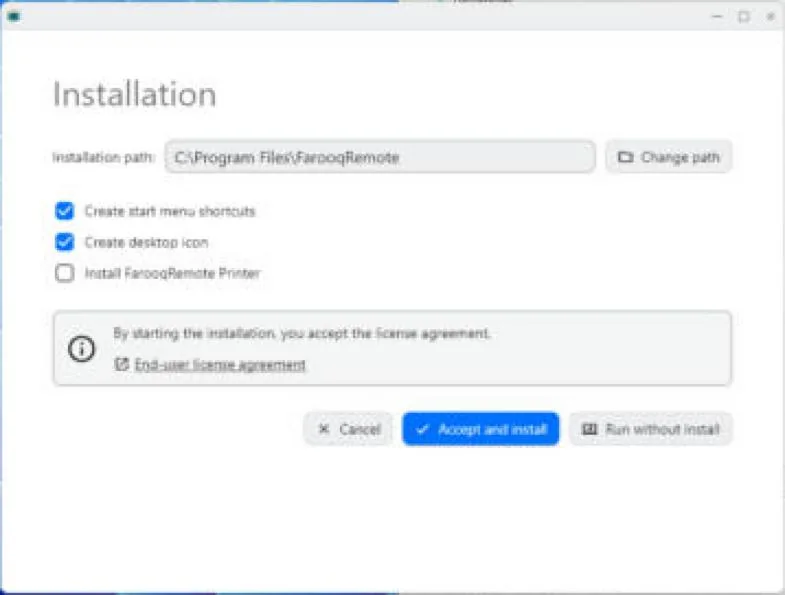
- The app opens straight away, with a pink box on the left: the app is running but is not installed yet. Press Install in that box, then Accept and install, and Yes when Windows asks. After that the pink box is gone, the app starts with Windows, and this computer can be reached even when it is locked.
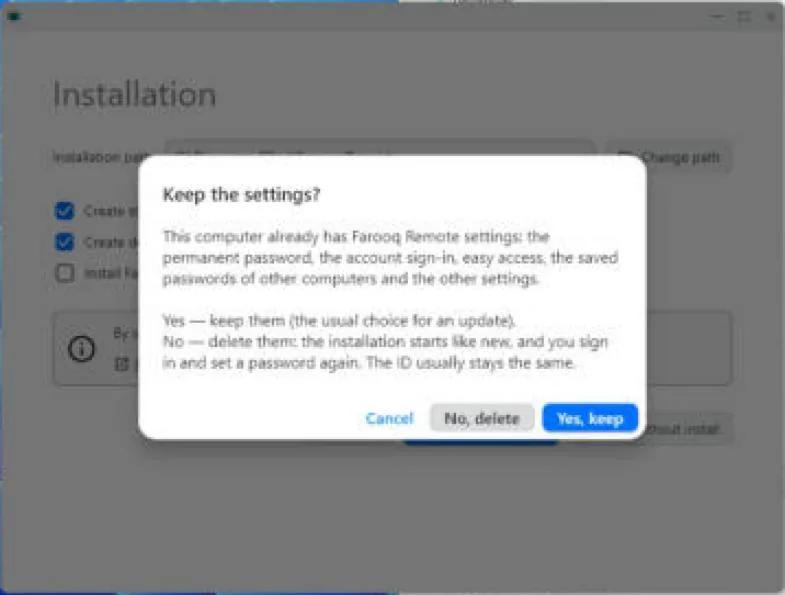
- If Farooq Remote was on this computer before, the app first asks Keep the settings?: Yes, keep keeps the permanent password, the account sign-in, easy access and the saved passwords (the usual choice for an update); No, delete starts like new.
- At the bottom it says Ready. The server is already built in; there is nothing to type.

2New versions
The app looks on farooqmughal.net for a newer version when it starts and every 12 hours. When there is one, the card A new version is available appears in the main window, and the app asks once whether to open the download page.
- Press Download: the download page opens in your browser.
- Download the new file and open it, then install it over the old one. Your settings, your account and easy access stay.
- Do this on every computer. Everything works best when all your computers have the same version.
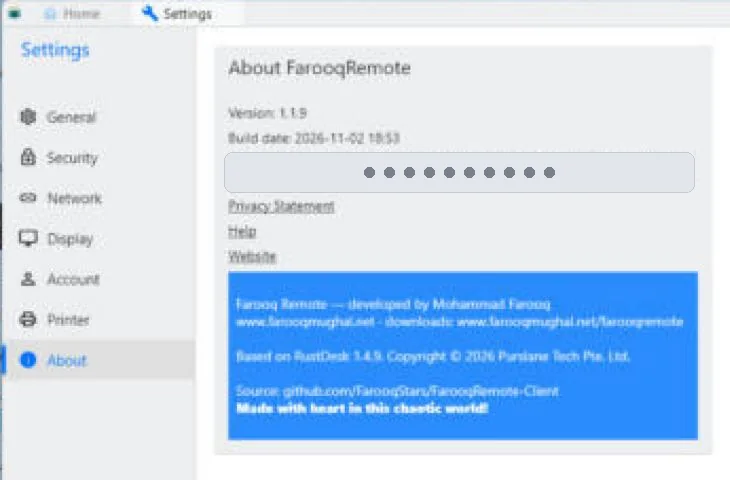
When you connect to a computer that has another version, the note Different versions shows both numbers and which computer to update. It comes once for each pair of versions.
3Uninstall the app
- Open Windows Settings → Apps → Installed apps and type FarooqRemote in the search box.
- Press the three dots next to it, then Uninstall, and confirm. (Another way: Start → All apps → FarooqRemote → Uninstall FarooqRemote.)
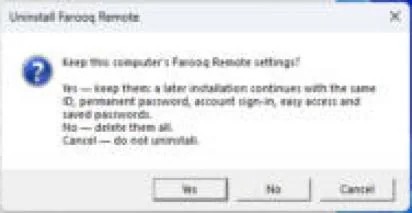
- The app asks whether to keep this computer's settings: Yes keeps them for a later installation (the same ID, permanent password, account sign-in, easy access and saved passwords); No deletes them all; Cancel stops the uninstall.
4The main window: your ID and password
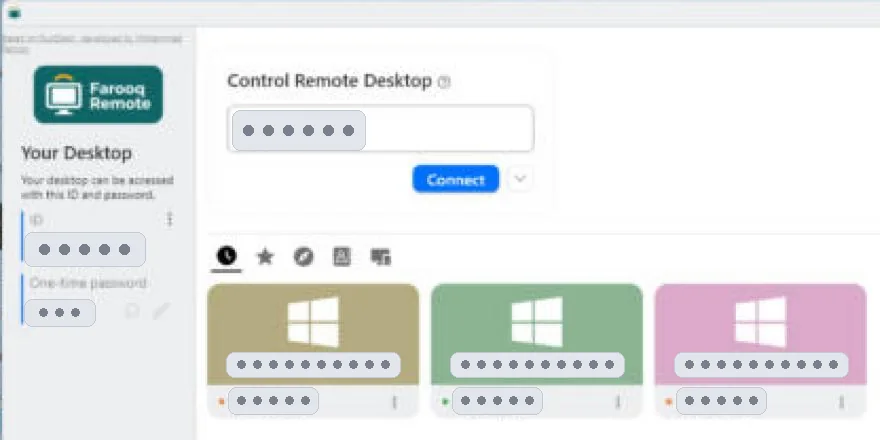
Under Your Desktop you see this computer's ID (a number such as 123 456 789) and a one-time password, which changes after every session. Under Control Remote Desktop you type the ID of another computer to connect to it. Below are your lists, as small icons: the clock — Recent sessions; the star — Favorites; the compass — Discovered (computers on the same network); the card — Address book; the screen — Accessible devices.
5Make a free account
An account keeps all your computers in one list, on every computer. It is free, and your e-mail address is your user name.
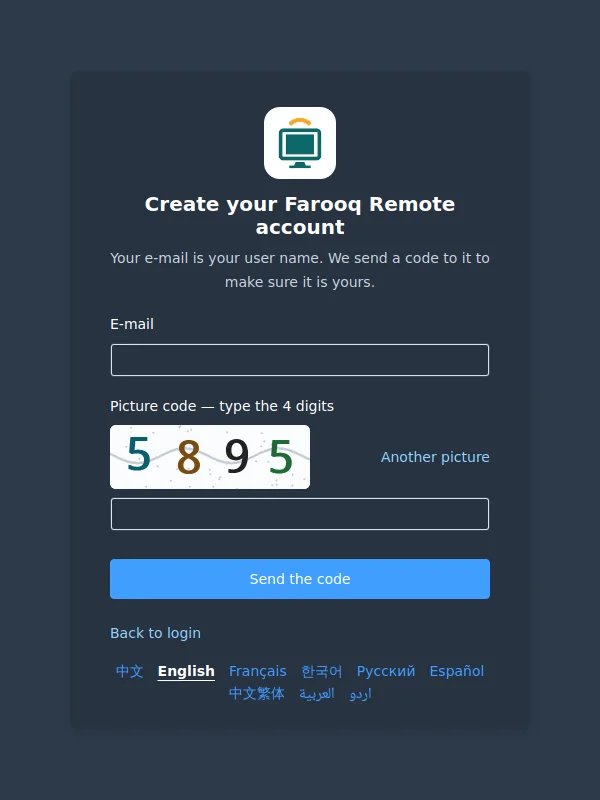
- In the app open Settings → Account → Login and press Create account — or open remote.farooqmughal.net/_admin/#/register in a browser.
- Type your e-mail address and the 4 digits of the picture code, then press Send the code. If a digit is not clear, press Another picture.
- Open your e-mail: a message from info@farooqmughal.net holds a 6-digit code (look in the spam folder too). The code works for 15 minutes.
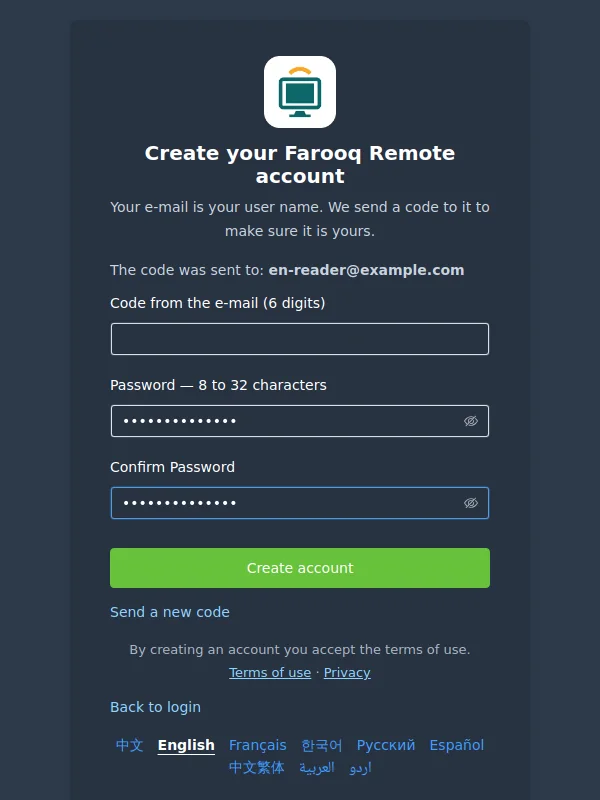
- Type the code, and a password of 8 to 32 characters twice, then press Create account. Your account is ready and you are logged in on the account website.
6Log in to your account
- Open Settings (the button with three lines at the top right) → Account → Login.
- Type your e-mail address (or your user name) and your password. The app accepts passwords of up to 32 characters.
- After logging in your name appears, your address book loads from the server, and this computer shows up in My Devices on the account website.
Forgot your password?
- Press Forgot password? in the app's login window, or on the login page of the account website.
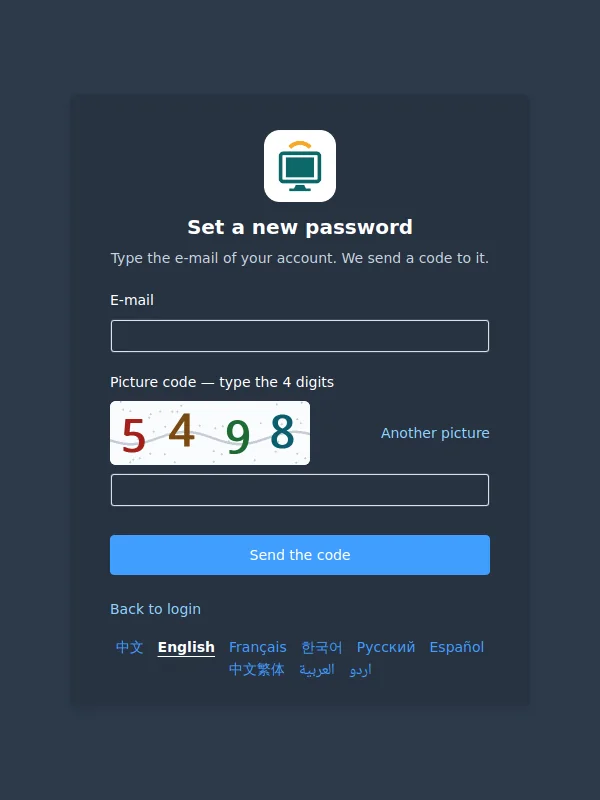
- Type your e-mail and the 4 digits of the picture code (unclear? Another picture), then press Send the code.
- Type the 6-digit code from the e-mail and your new password twice, then press Save the new password. For your safety, every computer where you were logged in is logged out — log in again with the new password.
7A permanent password on each computer
The one-time password keeps changing. To reach a computer when nobody is sitting at it, give it a permanent password once:
- On that computer: Settings → Security → Unlock security settings (Windows asks for permission).
- Under Password choose Set permanent password, type the password twice and press OK.
- Choose Use permanent password (or Use both passwords).
8Easy access: your own computers without a password
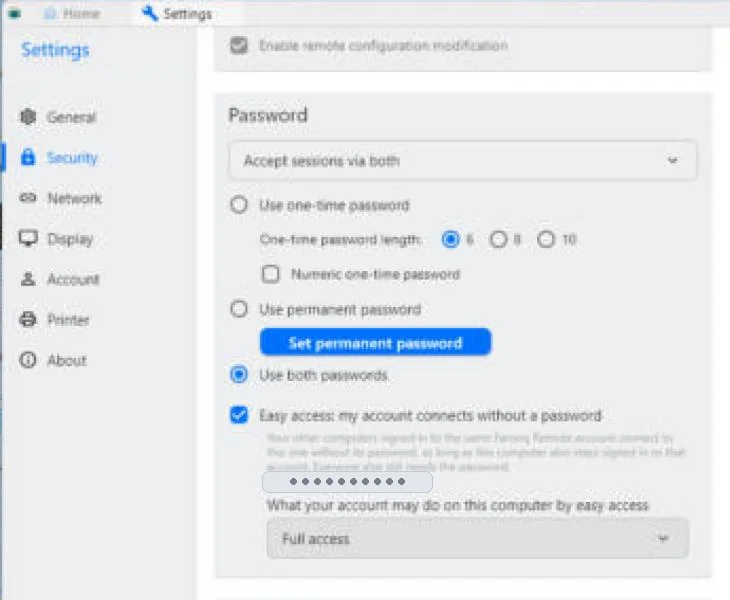
Like TeamViewer's «Easy Access»: when you are logged in to your account, your own computers connect to each other without asking for a password. Everybody else still needs the ID and the password. Version 1.1.7 or newer on both sides (best: the newest on all of them).
- On each of your computers, log in to your account: Settings → Account → Login.
- On the computer you want to reach: Settings → Security → Unlock security settings, then under Password tick Easy access: my account connects without a password. Your account name is shown under it.
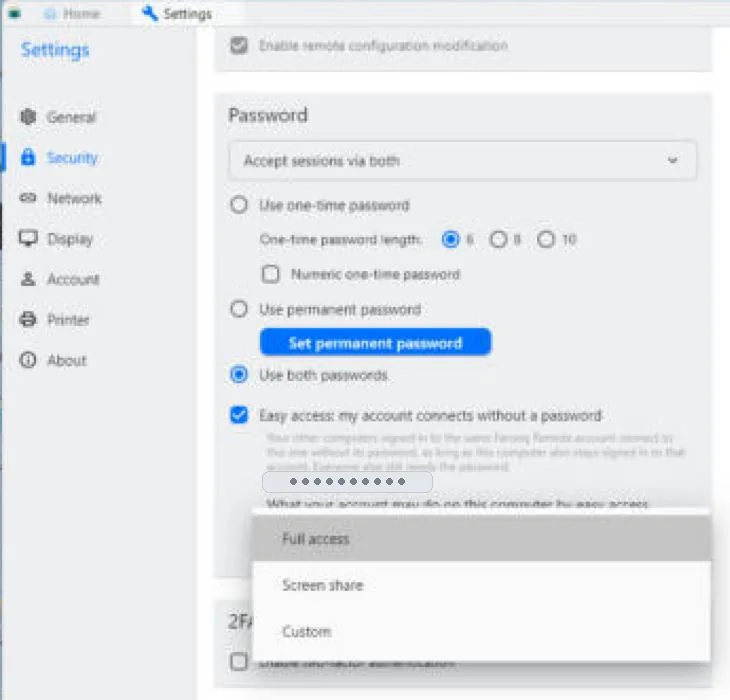
- Under the box, choose what your account may do on that computer: Full access, Screen share (only see the screen) or Custom — then tick each thing you allow: keyboard and mouse, files, clipboard, sound, terminal and so on. This applies only when you come in by easy access; people with the password keep the general permissions.
- Do this once on every computer you want to reach this way.
- From another of your computers (logged in to the same account), open that computer from your device list — it connects without asking for a password.
9All your computers in the address book
- Open the Address book tab and press Add ID (+).
- Type the computer's ID, a name you will recognise (for example PC1 Home) and, if you like, a tag such as Home or Office, then OK.
- The first time you connect, tick Remember password. From then on a double-click is enough.
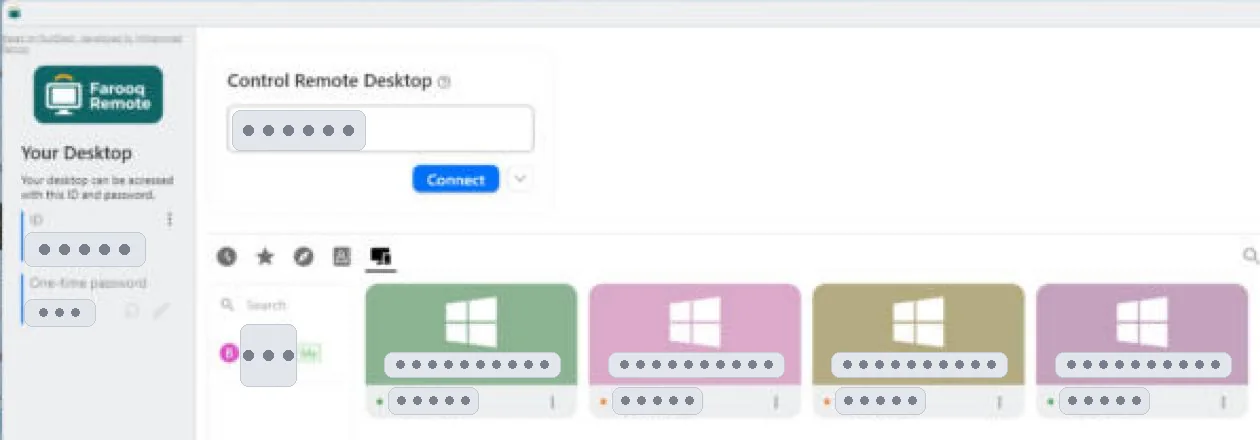
The address book is kept on the server: every computer where you are logged in shows the same list, and you can also see and change it on the account website.
10Connect — and five or more computers at once
- Double-click a computer in the address book, or type its ID at the top and press Connect.
- Type its password if the app asks (or let the app remember it).
- Connect to the next computer the same way. Each connection opens as a new tab in the same remote window — five, six or more at the same time. Click a tab to switch; drag a tab out to give it its own window, for example on a second screen.
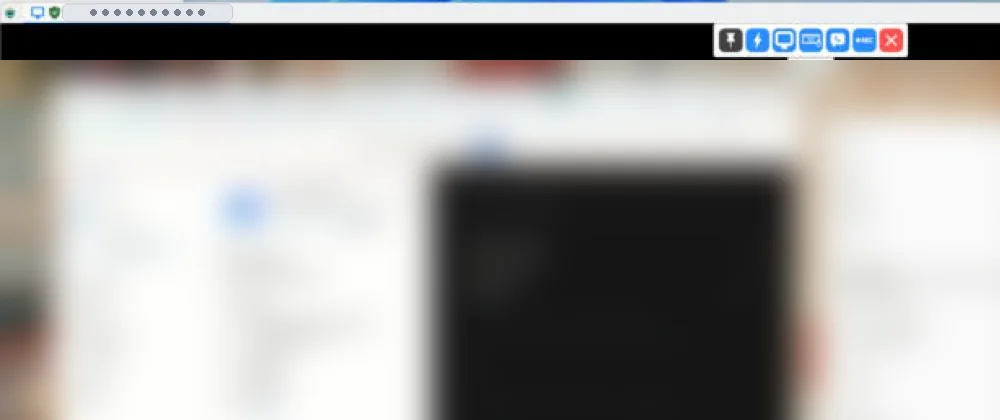
The small shield on each tab shows the connection: green — encrypted from one computer to the other, as it should be; red — not encrypted (see «A red shield on a tab» under Problems and answers).
11Files, clipboard and chat
The bar at the top of the remote window has everything you need during a session:
- File transfer — copy files in both directions between the two computers.
- Clipboard — copy text on one computer and paste it on the other; it works by itself.
- Chat — write to the person at the other computer.
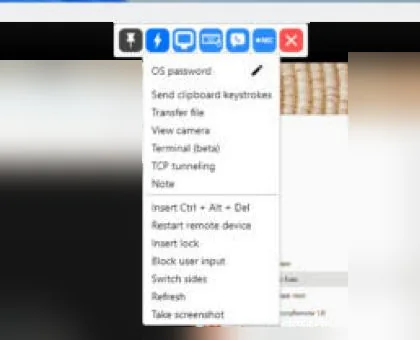
- Actions — Ctrl+Alt+Del, lock, restart the other computer, and display options (quality, size, which monitor).
12Urdu or Arabic
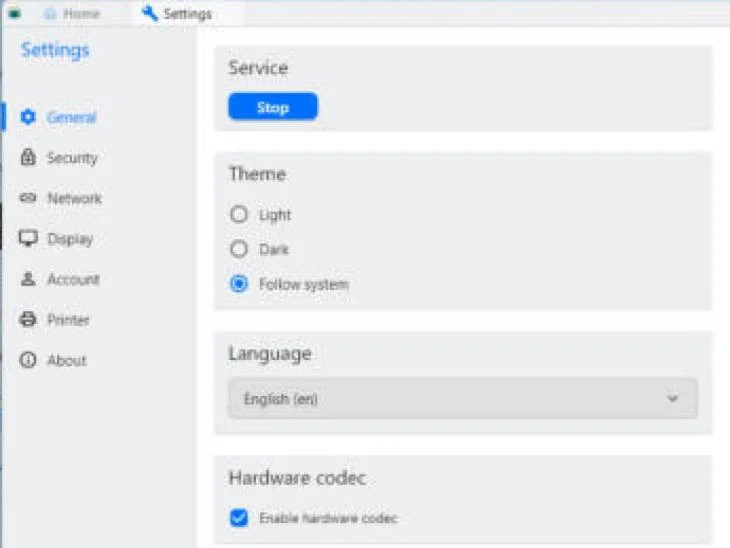
- Settings → General → Language.
- Choose اردو or العربية. All text then appears in the Naskh font.
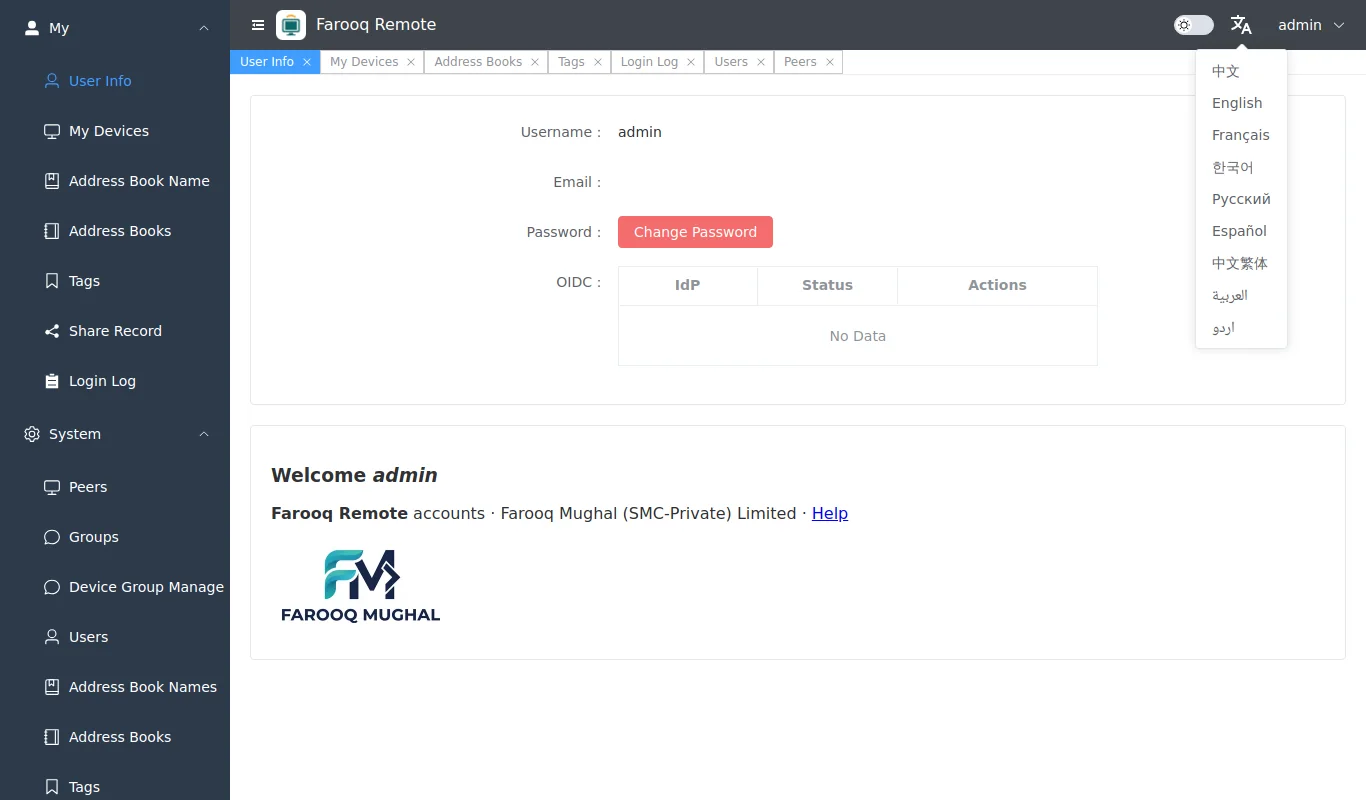
On the account website use the language icon (文A) at the top, or the language links under the login form.
13The account website
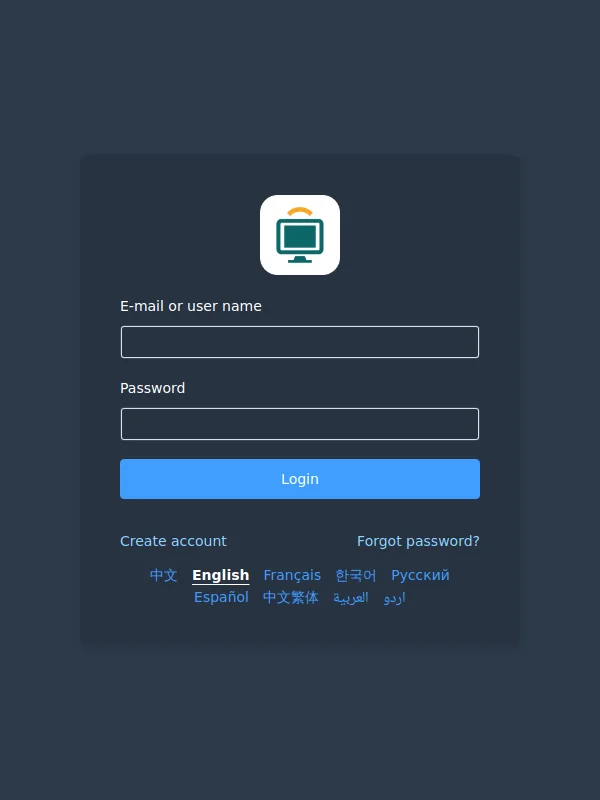
At remote.farooqmughal.net/_admin you see and manage your account from any browser. Sign in with the same e-mail (or user name) and password as in the app.
Sign in
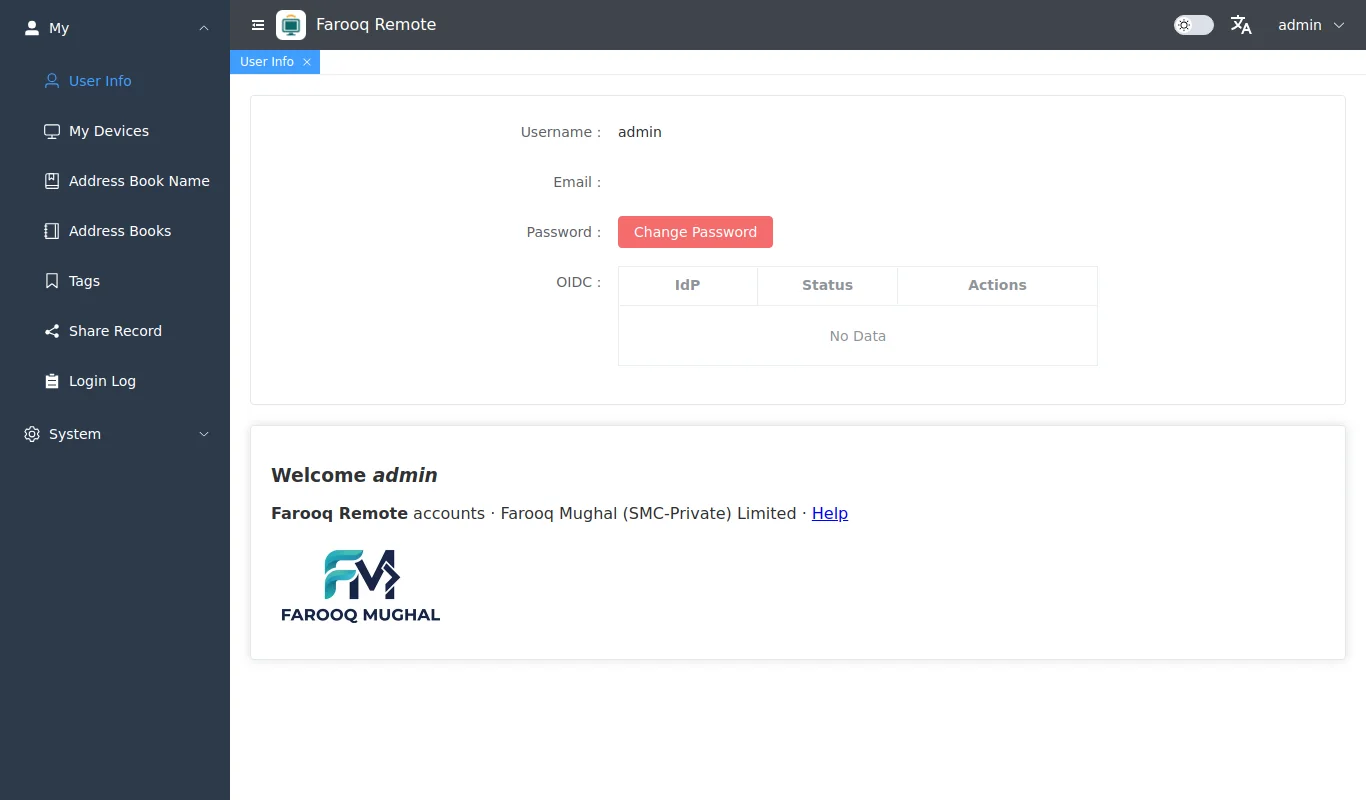
My info
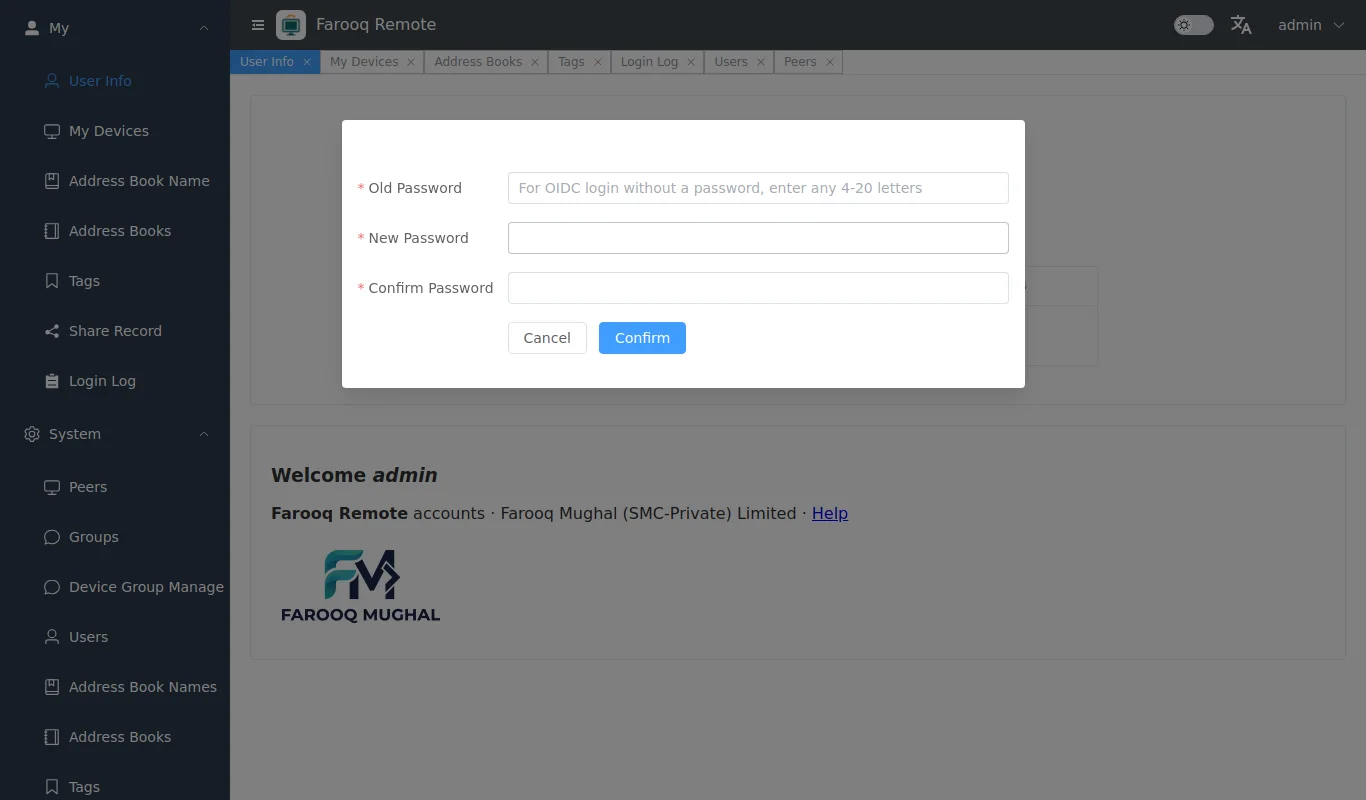
Your user name and the Change Password button.
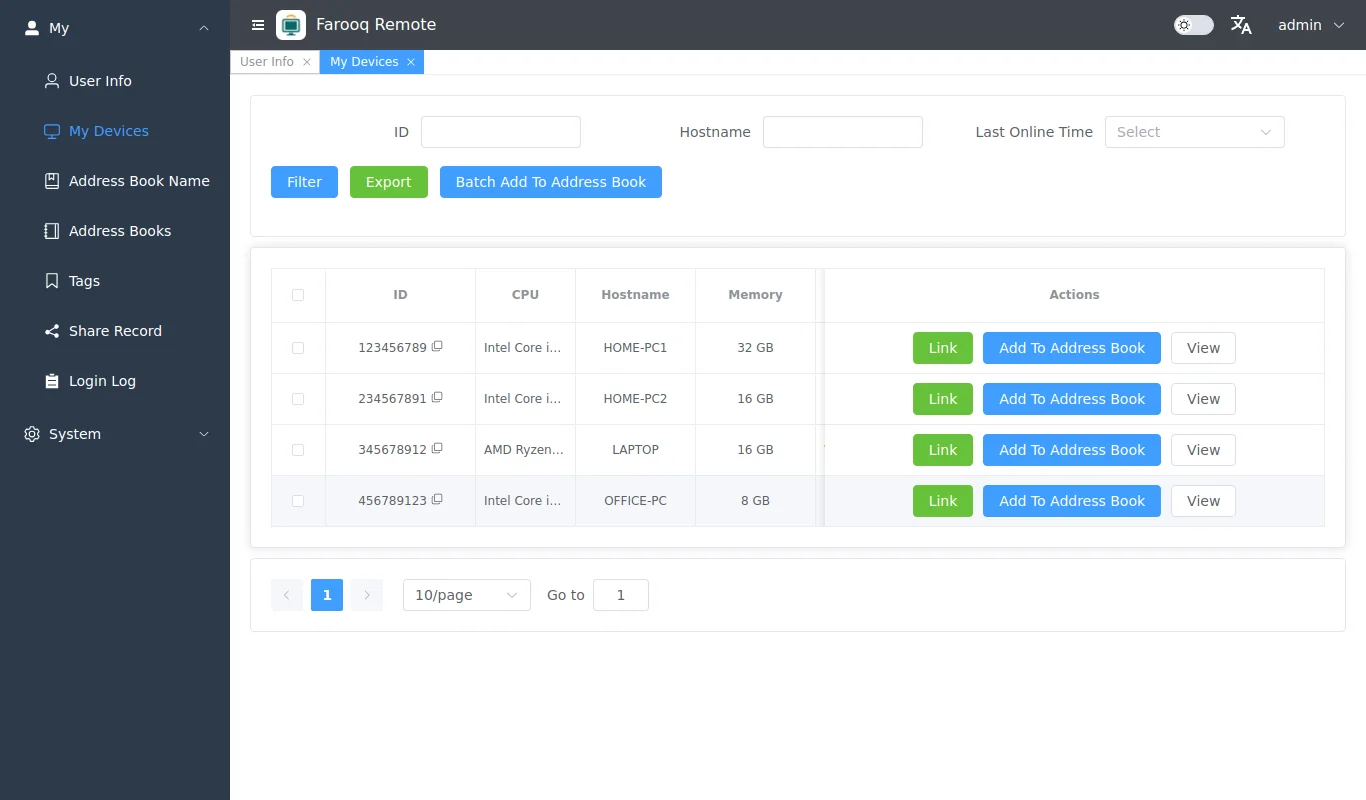
My devices
Every computer that has logged in with your account: ID, computer name, operating system, memory, and when it was last online (a green dot means online now). From here you can add a computer to the address book.
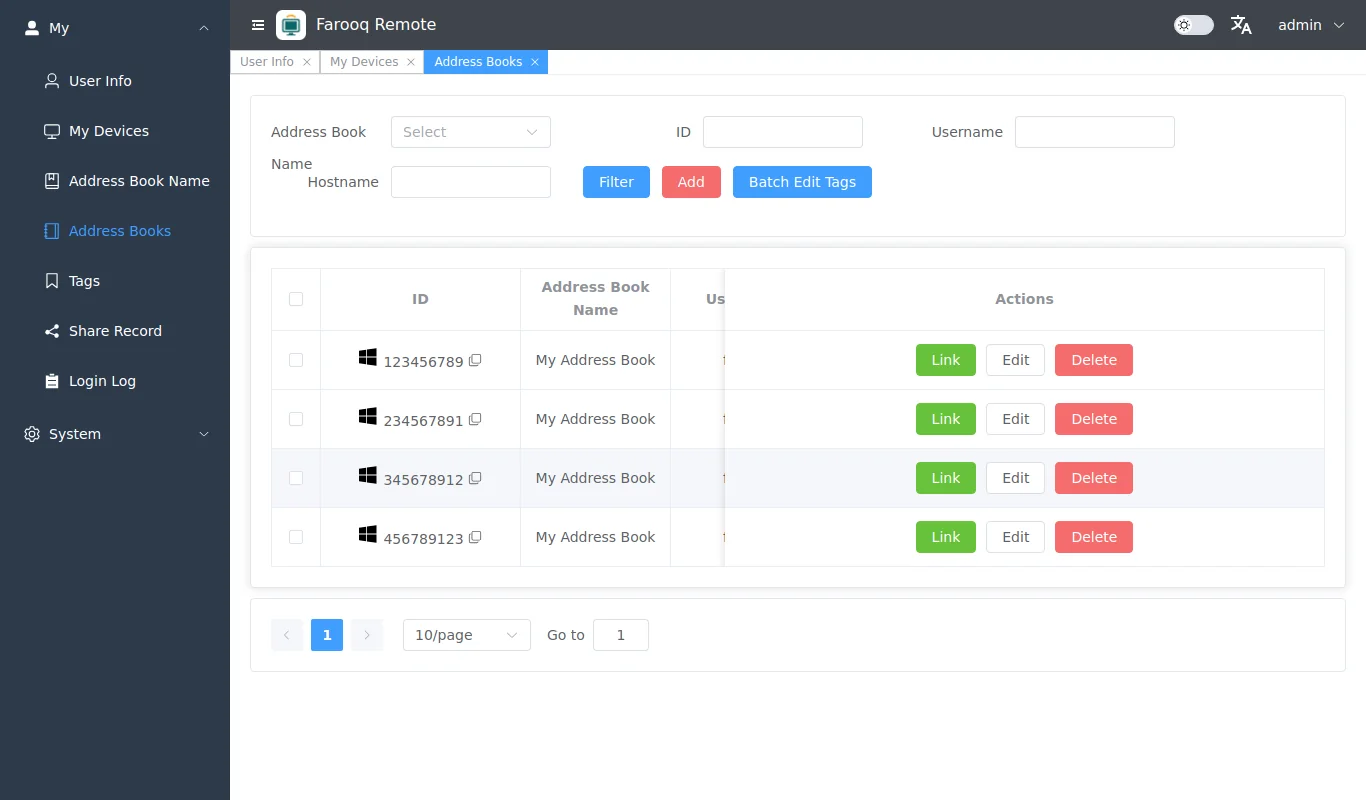
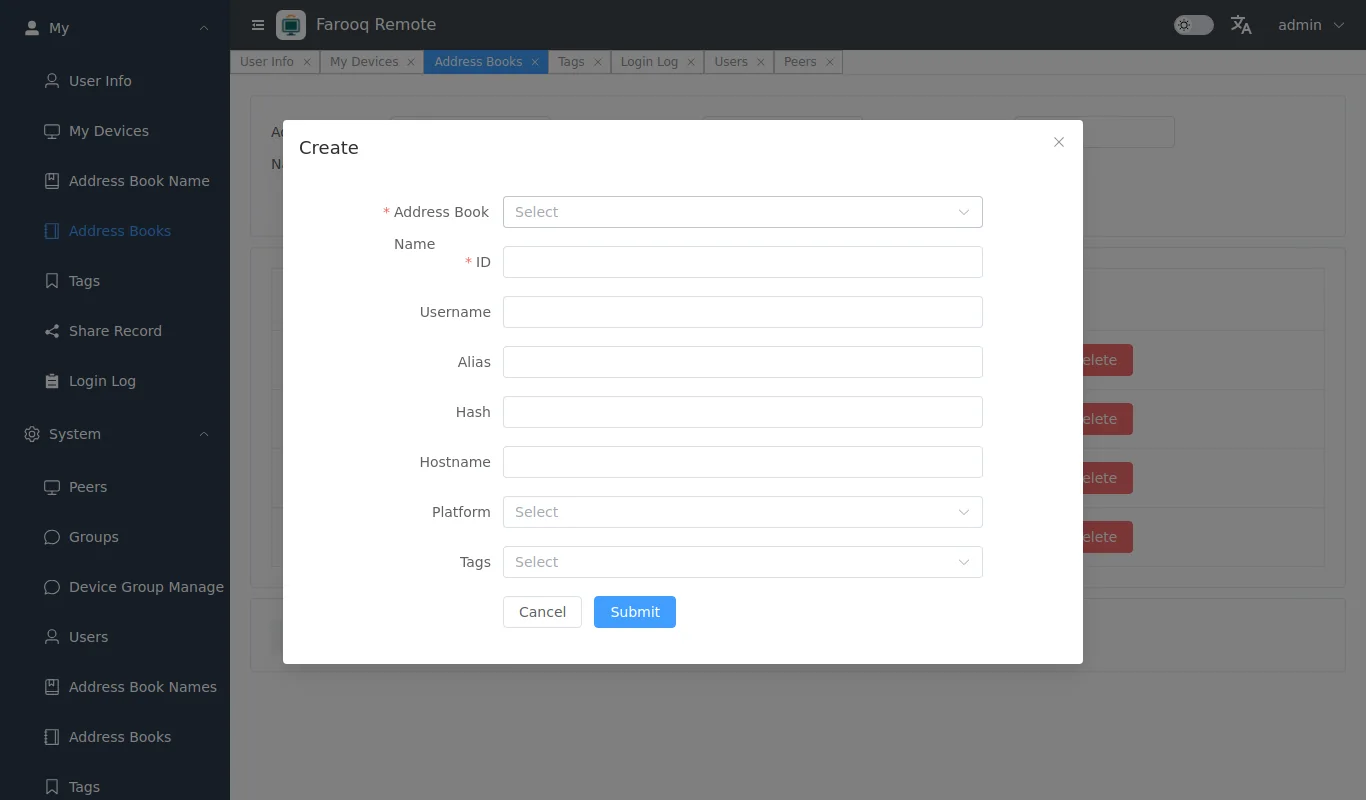
Address books and tags
The same list as in the app: add, edit or delete computers and give them tags.
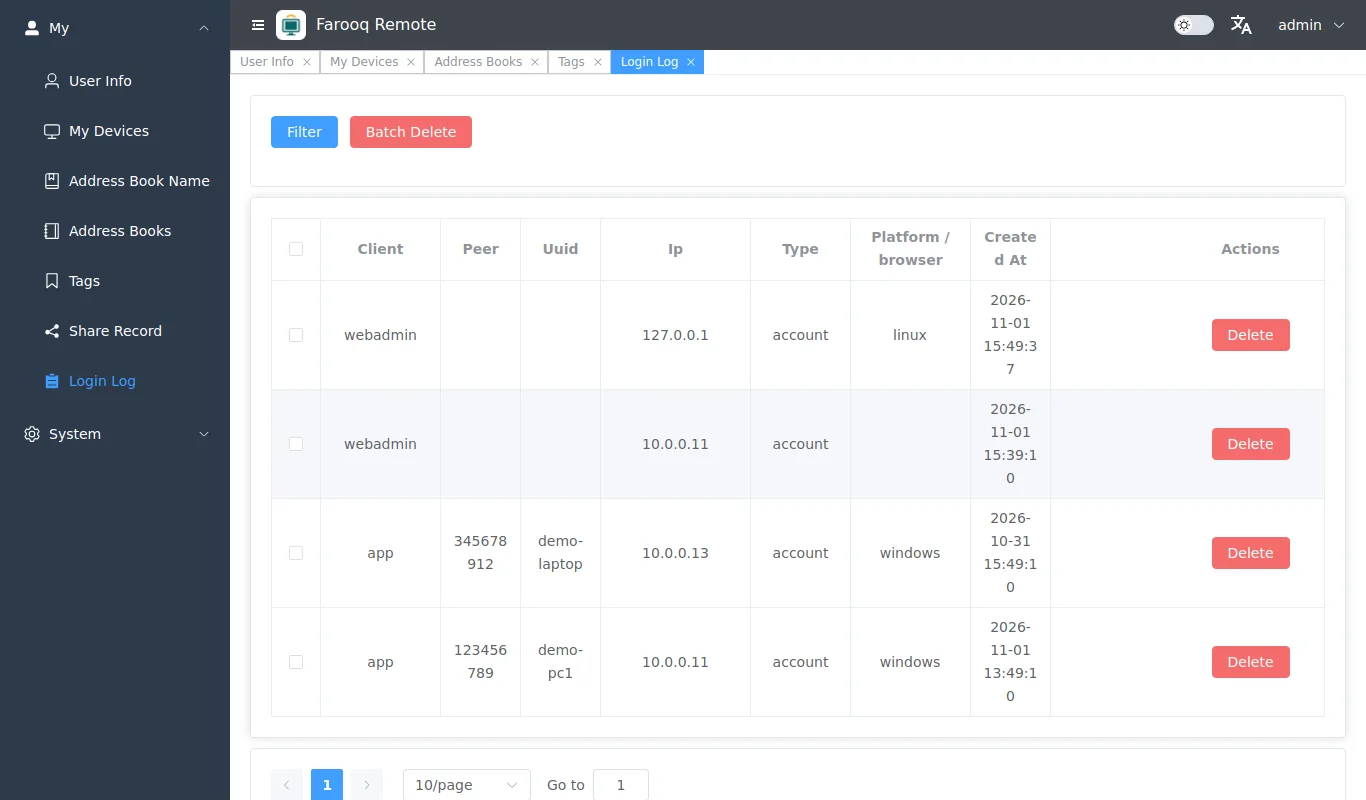
Login records
Every login — from the app or from this website — with its time and network address. Look here now and then: if you see a login you do not recognise, change your password at once.
Language
Change password
Open the menu under your name at the top → Change Password: the old password, then the new one twice.
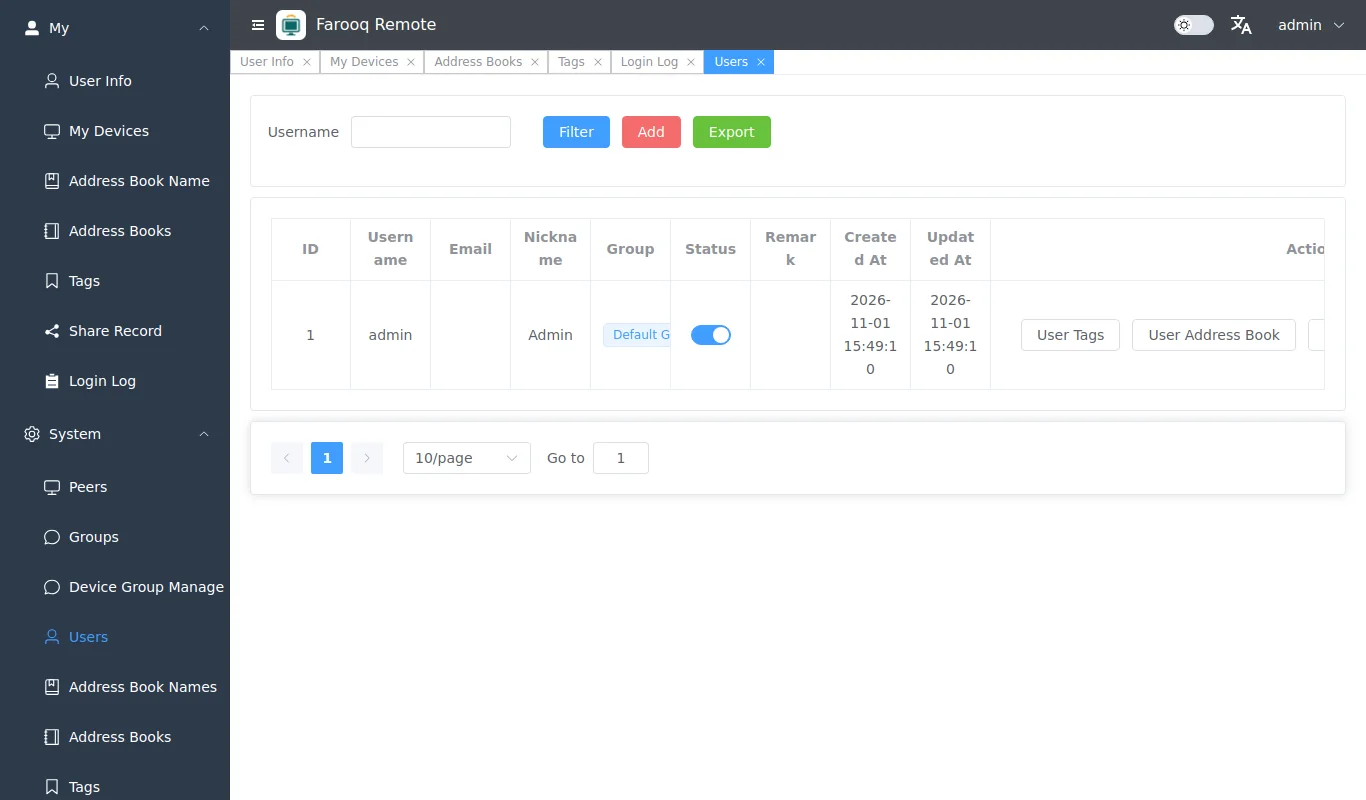
System (administrator only)
Users, all devices, groups, and every user's address books and records. Only the administrator sees this menu.
14Keep it safe
- Your account password and the computers' permanent passwords are different passwords. Keep all of them in your password book; never send them by e-mail or chat.
- After 10 wrong passwords within 10 minutes the server blocks that network address for 30 minutes. The website asks for a picture code after 3 wrong passwords.
- Sessions are encrypted end to end. Our server only introduces the computers to each other and, when needed, passes on data it cannot read.
- Sign-up and new-password codes come only from info@farooqmughal.net, at most 3 per address in 15 minutes. We never ask for your password by e-mail or phone.
- The account data is copied every night (each copy is kept for 14 days).
- Keep the app up to date: it tells you when a new version is out (see «New versions»).
15Problems and answers
- The app does not say «Ready».
- Check the internet connection, then close the app and open it again.
- Login does not work.
- Check the user name and the password (at most 32 characters). After 10 wrong tries wait 30 minutes.
- I cannot connect to a computer.
- That computer must be switched on, connected to the internet and running Farooq Remote (an installed app starts with Windows). It needs a permanent password, or someone at it must tell you its one-time password.
- «Failed to secure tcp: deadline has elapsed» when I connect.
- This happened in version 1.1.3 and older while you were logged in to your account. Install version 1.1.4 or newer from the download page; your settings and your account stay.
- One computer stays on «Connecting…», asks for a password or says «Insecure connection», although easy access is on.
- Check that the old RustDesk program is not also installed on that computer: it would use the same ID, and some connections would reach it instead of Farooq Remote. On that computer: Settings → Apps → RustDesk → Uninstall. Keep Farooq Remote. From version 1.1.8 the app on that computer also shows the card RustDesk is also installed here.
- A red shield on a tab: «Direct and unencrypted connection».
- The connection works but is not encrypted from one computer to the other, because the server holds another key for that computer's ID — usually left by another remote-desktop program with the same ID (for example an old RustDesk). Remove that program from the computer, then install the newest Farooq Remote there: from version 1.1.9 the app sends its own key to the server again after each update, and the shield turns green. Until then, do not type important passwords through that connection.
- The password window says «Easy access was not used: …».
- The line tells why easy access did not work this time: this computer is not logged in to your account; the other computer could not be verified (see the answer above); the account server could not be reached (check the internet); the other computer does not offer easy access right now (log in there to the same account and tick easy access); or it did not accept or did not answer (install the newest version there). You can still type the password.
- I forgot my account password.
- Press Forgot password? in the app's login window: your e-mail, the picture code, then the code from the e-mail and a new password.
- The code does not arrive.
- Wait a minute and look in the spam folder, and check the address you typed. You can ask for a new code (at most 3 in 15 minutes); each new code replaces the old one.
- Windows says the app is unknown (a blue window).
- The app is new and does not yet carry the company's digital signature, so Windows warns. Press More info → Run anyway. It appears only when you open the downloaded file; the installed app opens from the Start menu without it.
- What is the pink box on the left?
- The app is running but is not installed. Press Install → Accept and install → Yes. Without installing, the Windows permission windows of this computer cannot be seen or answered from far away, and the computer cannot be reached once the app is closed.
- How do I get an account?
- Press Create account in the app's login window, or open remote.farooqmughal.net/_admin/#/register: your e-mail, the picture code, the 6-digit code from the e-mail and a password. It is free.
- Why is a server needed if the app runs on its own?
- Computers on the internet cannot find each other by themselves — each one sits behind its own router. Our server works like a telephone exchange: every computer tells it its ID; when you type an ID, the server introduces the two computers and they connect directly. When a direct connection is not possible, the server passes on the encrypted data, which it cannot read. The account part keeps your user name, address book and list of computers, so every computer shows the same list. TeamViewer works the same way through its own company's servers; Farooq Remote uses the company's own server.
Farooq Remote 1.1.9 · based on RustDesk (AGPL-3.0) · source code: github.com/FarooqStars/FarooqRemote-Client · questions: info@farooqmughal.net · terms of use